Mod guide · Nintendo GameCube
Your modded GameCube
PicoLoader + GekkoBoot + Swiss + SD2SP2
This GameCube has a small chip inside that loads Swiss, a game menu that plays games from a microSD card instead of discs. This page walks you through everything, step by step. No tech experience needed.
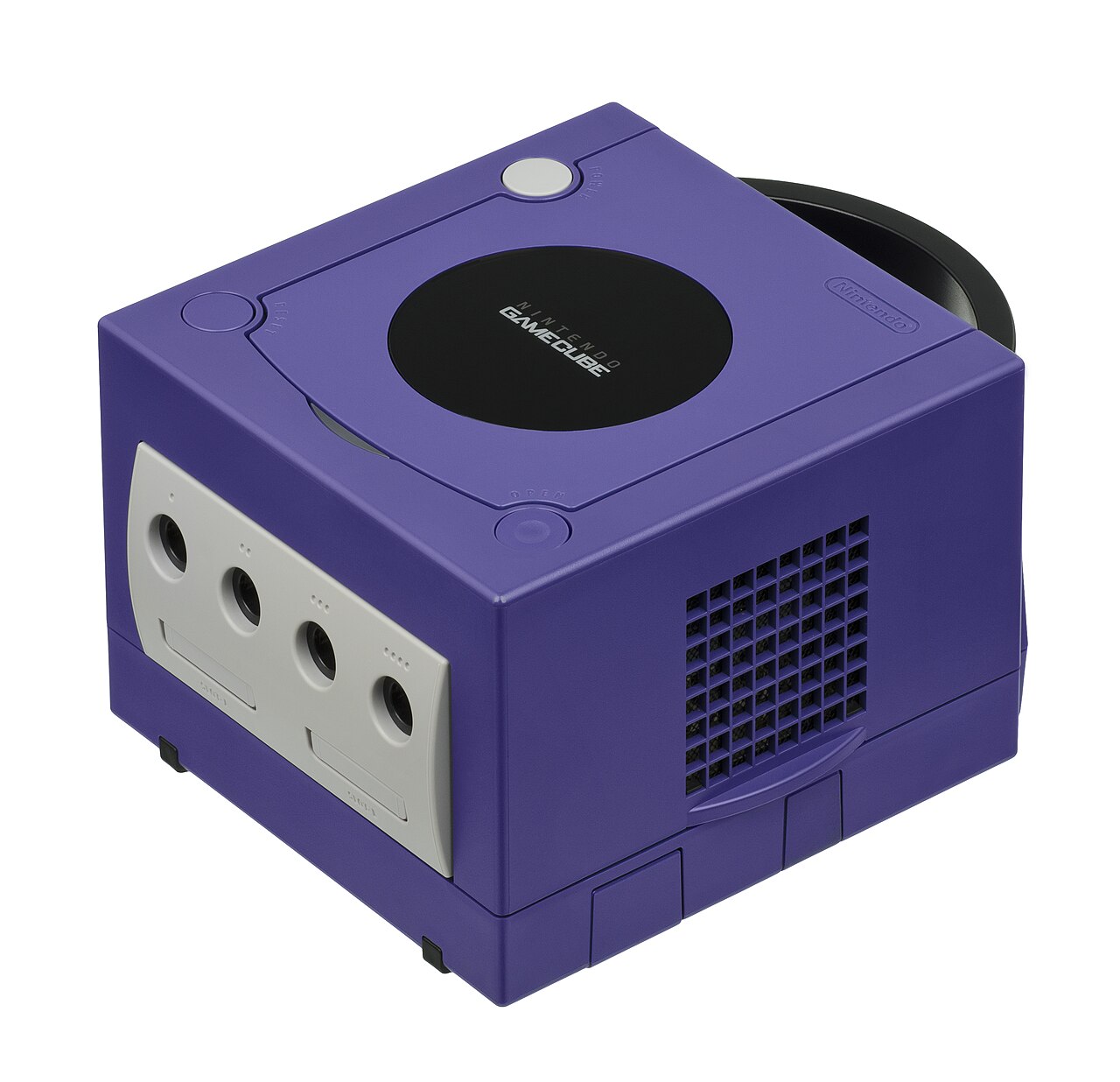
Just want to play?
If someone already set up the SD card for you, this is all you need.
Turn on the GameCube
Don't hold any buttons. Instead of the usual GameCube intro, Swiss (the game menu) appears after a moment.
Choose the SD card
If Swiss asks which device to use, pick the SD card option (SD2SP2).
Open the
Gamesfolder and pick a gameMove with the control stick and press A to select. Then follow the on-screen prompt to start the game.
01 · The parts
What's inside your GameCube
Five free, open-source pieces work together. You don't need to understand them to play, but it helps when something goes wrong.
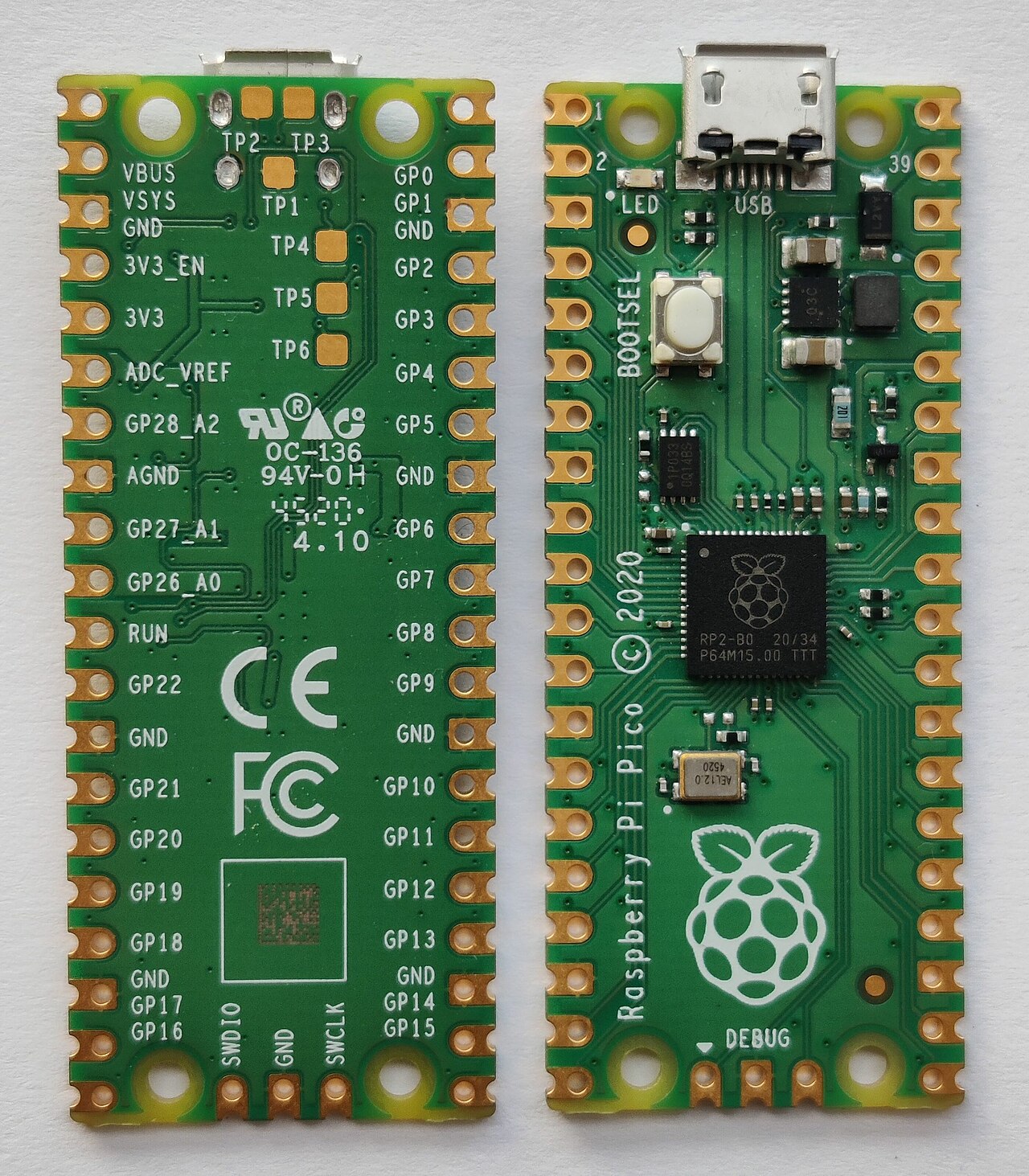
Chip inside the console
PicoLoader
A small board based on a Raspberry Pi Pico. When you power on, it briefly takes the place of the disc drive to start the next program, then hands the drive back, so real discs still work.
Official projectStarter program
GekkoBoot
Built into the PicoLoader firmware (picoloader_gekkoboot.uf2). It looks on the SD card for a file named ipl.dol and starts it.
Game menu
Swiss
The menu you see when the console turns on. It lists the files on the SD card and starts GameCube games and apps. On the card, Swiss is the file named ipl.dol.
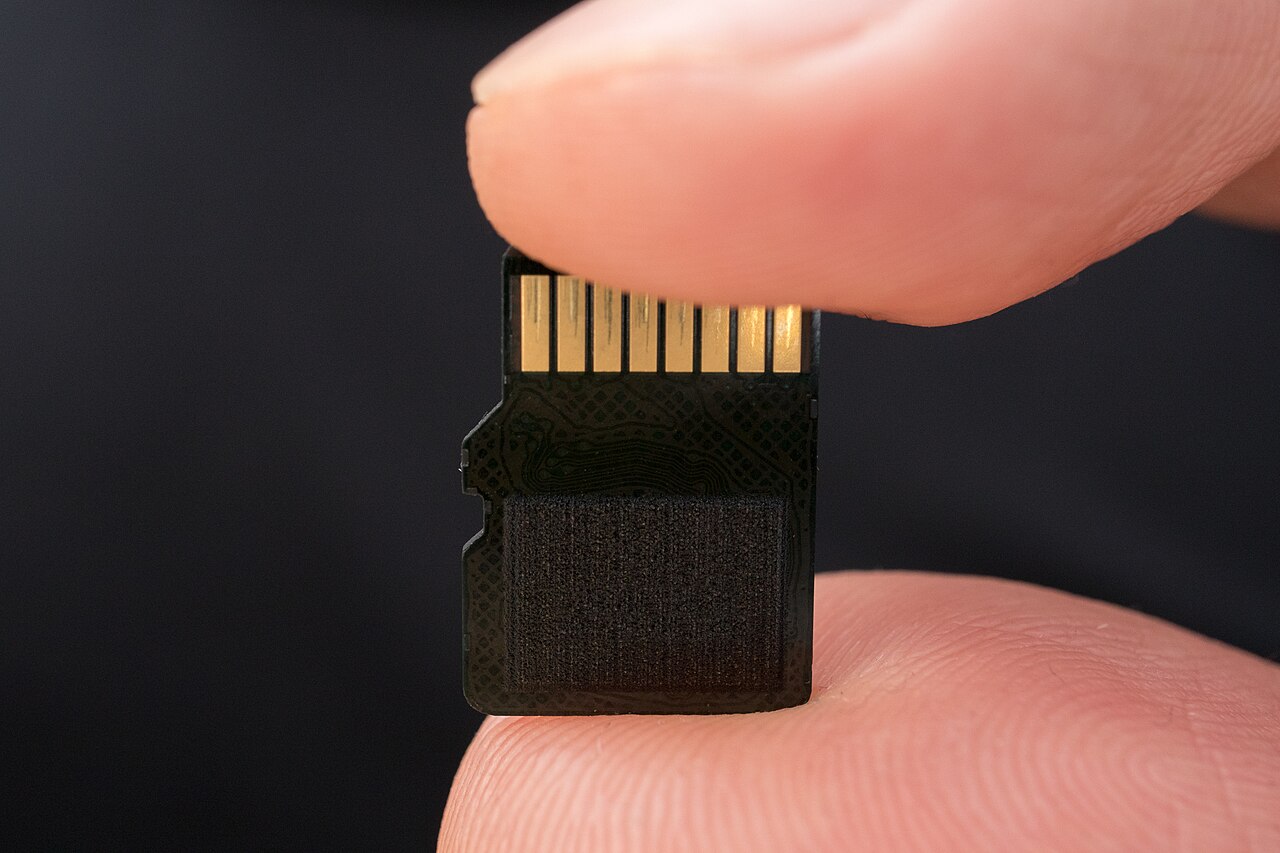
SD card adapter
SD2SP2
Plugs into Serial Port 2 on the underside of the GameCube and holds the microSD card where your games are stored.
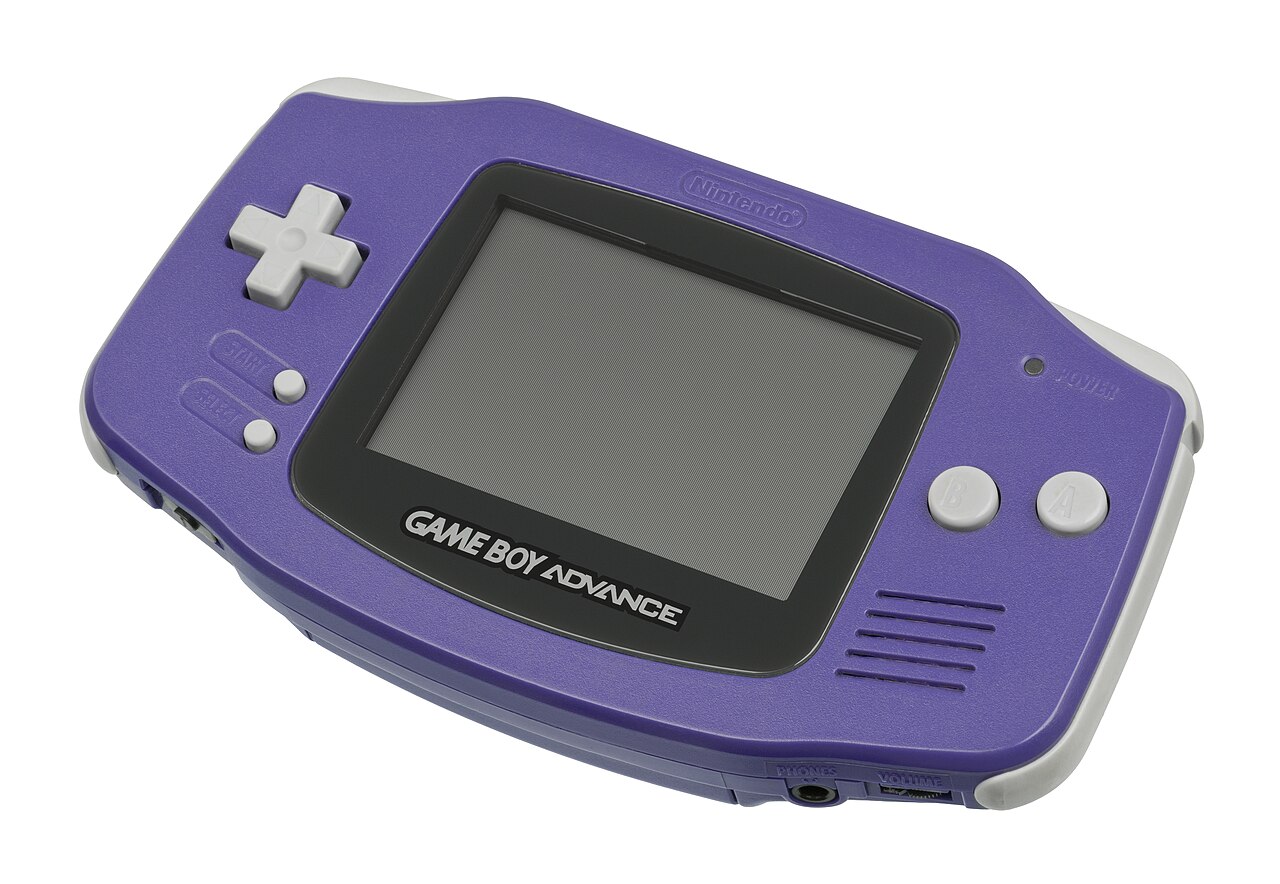
Game Boy emulator (optional)
Visual Boy Advance GX
An app you start from Swiss that plays Game Boy, Game Boy Color and Game Boy Advance games without the Game Boy Player accessory.
Official project02 · Boot process
What happens when you press Power
- Power on
- PicoLoaderchip inside
- GekkoBootlooks for
ipl.dol - Swiss
ipl.dolon the SD card - Your gamesGameCube & Game Boy
The important part: the SD card must have a file called exactly ipl.dol. That file is Swiss. If it's missing or named differently, the GameCube just starts normally.
Buttons you can hold while turning on
| Hold this while powering on | What happens |
|---|---|
| Nothing | Swiss starts (from ipl.dol). |
| D-Pad Left or the Reset button | Skips everything and goes to the original GameCube menu. Use this to play a real disc. |
| A, B, X, Y, Z or Start | Starts a.dol, b.dol, x.dol… from the SD card if that file exists. Otherwise Swiss starts as usual. |
These shortcuts come from GekkoBoot. See its official instructions for details.
03 · Storage
Find and remove the SD card
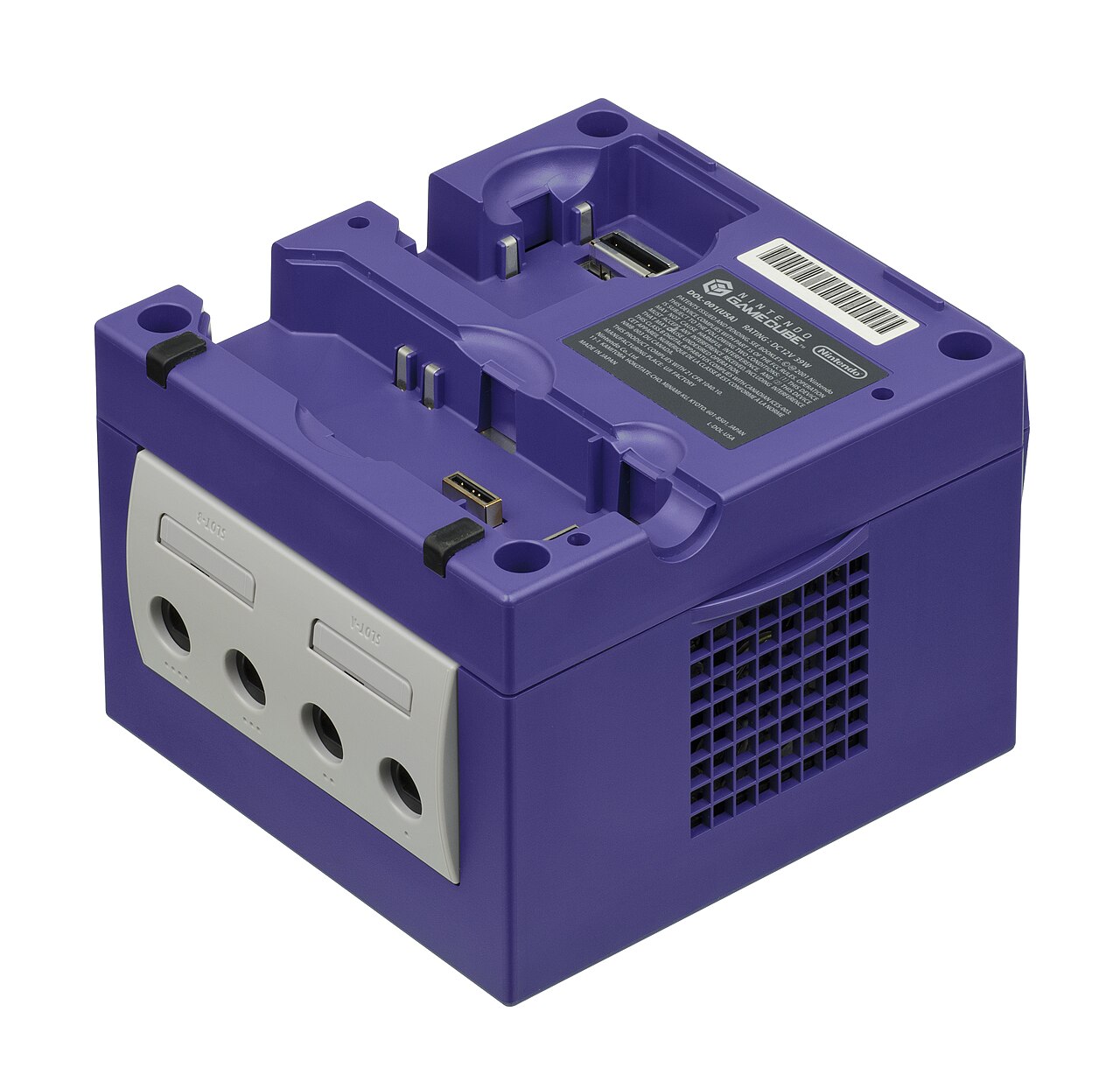
Always turn the GameCube off first
Never remove or insert the SD card while the console is on. You could damage your files.
Turn the GameCube off with the Power button.
Carefully tip the console over so you can see the underside.
Unplug the controllers and cables first if they get in the way.
Take the microSD card out of the SD2SP2 adapter.
Some adapters need a gentle push on the card first to release it. Don't pull the adapter itself out of the console.
Put it into your computer.
Use a microSD card reader or an SD-size adapter if your computer has an SD slot.
04 · GameCube
Add GameCube games
Use backups of games you legally own, made from your own discs. This guide doesn't link to download sites.
Turn off the GameCube and take out the microSD card.
Put the card into your computer and open it.
Open the
Gamesfolder.If there isn't one, create a new folder and name it
Games. The folder name is just for staying organized; Swiss can open games from any folder.Copy your game files into
Games.Wait until copying is completely finished.
Safely eject the card.
Windows: right-click the card in File Explorer → Eject. Mac: click the ⏏ icon next to the card in Finder.
Put the card back into the SD2SP2 adapter, the same way it came out.
Turn on the GameCube. In Swiss, open
Gamesand pick your game.
Which file types work?
Use .iso files (sometimes called .gcm). That's a plain copy of the disc and the safest choice. The Swiss download also includes NKit, a tool that makes smaller, Swiss-compatible copies.
`.rvz` files won't work in Swiss
.rvz is a compressed format made for the Dolphin emulator. Convert it first: install Dolphin, add the folder with your game, right-click the game → Convert File… → set Format to ISO → Convert. Then copy the new .iso to the card.
Games with two discs
Some games, like Resident Evil 4 (Biohazard 4), come on two discs. Keep both disc files together in one folder with clear names, and start the game from Disc 1.
05 · Game Boy · Color · Advance
Play Game Boy games on your TV
Visual Boy Advance GX (VBA GX) is an emulator: software that acts like a Game Boy. It plays Game Boy, Game Boy Color and Game Boy Advance games. It is not the same as Nintendo's Game Boy Player accessory, so a few games may behave a little differently.
Install it (one time only)
Download the GameCube version from the official VBA GX releases page.
The file is called
VisualBoyAdvanceGX-<version>-GameCube.zip.Unzip it on your computer.
Copy
vbagx-gc.dolto the main level of the SD card, next toipl.dol.If the download includes a
vbagxfolder, copy that to the main level as well.Make sure the folders
vbagx→romsexist on the card.Create them if they're missing. Use lowercase names exactly as shown.
Add Game Boy games
Copy your game files into
vbagx/roms.Files ending in
.gb,.gbcor.gbawork, and so do.zipor.7zfiles containing them.Eject the card, put it back in the GameCube and turn it on.
In Swiss, select
vbagx-gc.dolto open the emulator.Pick a game from the list.
Save files are kept in
vbagx/saves.
Shortcut: hold X to go straight to Game Boy games
Make a copy of vbagx-gc.dol on the main level of the card and rename the copy to x.dol. Now holding X while you turn on the GameCube opens VBA GX directly.
VBA GX's own instructions recommend an SD card formatted as FAT32, but this setup uses exFAT for Swiss. If VBA GX can't find your games, see Troubleshooting.
06 · Only for a new or empty card
Set up a new SD card
Only do this if you're starting with a new or empty microSD card, or the old one stopped working.
Formatting erases everything on the card
Copy any games and save files from the card to your computer first.
Step 1 · Format the card as exFAT
Windows: open File Explorer, right-click the microSD card → Format…
Set File system to
exFATand Allocation unit size to Default.Leave Quick Format checked, then click Start.
Mac: open Disk Utility, select the card, click Erase, choose Format ExFAT and Scheme Master Boot Record, then click Erase.
Step 2 · Put Swiss on the card
Download the newest Swiss from the official Swiss releases page.
Get the
.7zfile, for exampleswiss_r2119.7z.Extract (unzip) it.
On Windows 11, right-click → Extract All. Otherwise use the free 7-Zip. On a Mac, use an app like Keka or The Unarchiver.
Open the
DOLfolder and findswiss_r2119.dol(the number changes with each release).Use the file directly inside
DOL, not the ones inDOL/Legacy.Copy it to the main level of the SD card (not inside any folder).
Rename it to exactly
ipl.dol.This is the step people miss most often.
Create a
Gamesfolder for your games.
ipl.dolWatch out for `ipl.dol.dol`
Windows hides file endings by default, so typing ipl.dol can secretly create ipl.dol.dol. In File Explorer, click View → Show → File name extensions to see the real name.
07 · Keeping things current
Updating the software
You don't have to update anything. If everything works, it's fine to leave it alone. Updates can fix bugs and improve compatibility.
Update Swiss (easy)
Back up the SD card by copying everything on it to your computer.
Download and extract the newest Swiss release.
Same as Set up a new SD card → Step 2.
Delete the old
ipl.dolfrom the card.Copy the new
swiss_rXXXX.dolfrom theDOLfolder to the card and rename itipl.dol.Leave your
Gamesfolder and other files as they are.
Update the PicoLoader chip (advanced)
This means opening the console
The chip is inside the GameCube. Most people never need to do this. If you're not comfortable working inside electronics, ask the person who installed your mod.
Turn off the GameCube and unplug it from power.
Download
picoloader_gekkoboot.uf2from the official PicoLoader releases page.Use the gekkoboot version for this setup, not
picoloader.uf2, and never a file made for PicoBoot.Hold the BOOTSEL button on the Pico while you connect it to your computer with USB.
A drive called
RPI-RP2appears.Copy
picoloader_gekkoboot.uf2onto that drive.The drive disappears by itself when it's done. Don't unplug anything while it copies.
Disconnect USB, then turn on the GameCube and check that Swiss starts.
According to the PicoLoader instructions, the light on the Pico should stay on.
picoloader_gekkoboot.uf2Full official steps, with photos, are in the PicoLoader wiki.
08 · When something's not right
Troubleshooting
Tap a problem to see what to check, easiest fixes first.
The normal GameCube intro plays instead of Swiss
- Make sure you're not holding any buttons (especially D-Pad Left or Reset) while turning on.
- Check that the card has a file named exactly
ipl.dolon its main level, not inside a folder. - Make sure it isn't secretly named
ipl.dol.dol. Turn on file name extensions to check. - Push the microSD card fully into the adapter, and make sure the SD2SP2 adapter is firmly plugged into the console.
- Copy a fresh
ipl.dolfrom the newest Swiss download. - If none of that works, the PicoLoader firmware may need to be reinstalled (advanced, see Updates).
Swiss starts but doesn't see the SD card
- Turn the console off, take the card out and put it back in firmly.
- Check that the SD2SP2 adapter is fully plugged into Serial Port 2 underneath.
- Check that the card works in your computer. If it doesn't, it may need formatting (see Set up a new card).
- Try another microSD card if you have one.
My game doesn't appear in the list
- Make sure the file finished copying and the card was ejected safely.
- Check the file ends in
.isoor.gcm. Convert.rvzfiles with Dolphin first. - Look inside the folder you copied it to; Swiss shows folders exactly as they are on the card.
A game shows up but won't start or freezes
- Try another game you know works. If others work, the problem is that one file.
- Make a fresh backup of the disc. Copies can get damaged.
- Update to the newest Swiss. Newer versions improve compatibility.
- Some games have known problems. These are suggestions, not guaranteed fixes.
VBA GX opens but can't find my Game Boy games
- Check the games are in
vbagx/romson the main level of the card, with lowercase folder names. - Check the file endings:
.gb,.gbc,.gba,.zipor.7z. - VBA GX's own instructions recommend FAT32. If the card is exFAT and VBA GX can't see it, a FAT32 card is the next thing to try. Swiss works with FAT32 too.
How do I play an original GameCube disc?
- Put the disc in, then hold D-Pad Left (or the Reset button) while turning on. The console starts its normal menu and plays the disc.
09 · Sources
Official project links
Everything here is free and open source. Always download from these official pages.
- PicoLoadergithub.com/makeo/PicoLoaderThe chip's firmware and hardware files
- PicoLoader wikigithub.com/makeo/PicoLoader/wikiOfficial installation and flashing instructions
- GekkoBootgithub.com/redolution/gekkobootThe starter program that loads ipl.dol
- Swissgithub.com/emukidid/swiss-gcThe game menu
- Swiss releasesgithub.com/emukidid/swiss-gc/releases/latest
- Visual Boy Advance GXgithub.com/dborth/vbagxGame Boy / Color / Advance emulator
- Visual Boy Advance GX releasesgithub.com/dborth/vbagx/releases/latest
- Dolphin Emulatordolphin-emu.org/download/Used here only to convert .rvz files to .iso
- 7-Zipwww.7-zip.org/Opens .7z files on Windows